Both the advantage and disadvantage of the NodeJS ecosystem is the fact that it is not opinionated. The advantage is that you can be really flexible in how to use it and the disadvantage is... exactly the same.
At the moment there is no widely used standard of managing a monorepo. You can use Lerna, Yarn workspaces and some custom build tools. I will describe one of them in this article.
We are going to be using several tools:
- Yarn and Yarn Workspaces for dependencies management in a monorepo config;
- ESLint for code linting;
- Prettier for opinionated code formatting;
- WebStorm as an IDE.
Directory structure
Let's start by creating a directory and initializing the project:
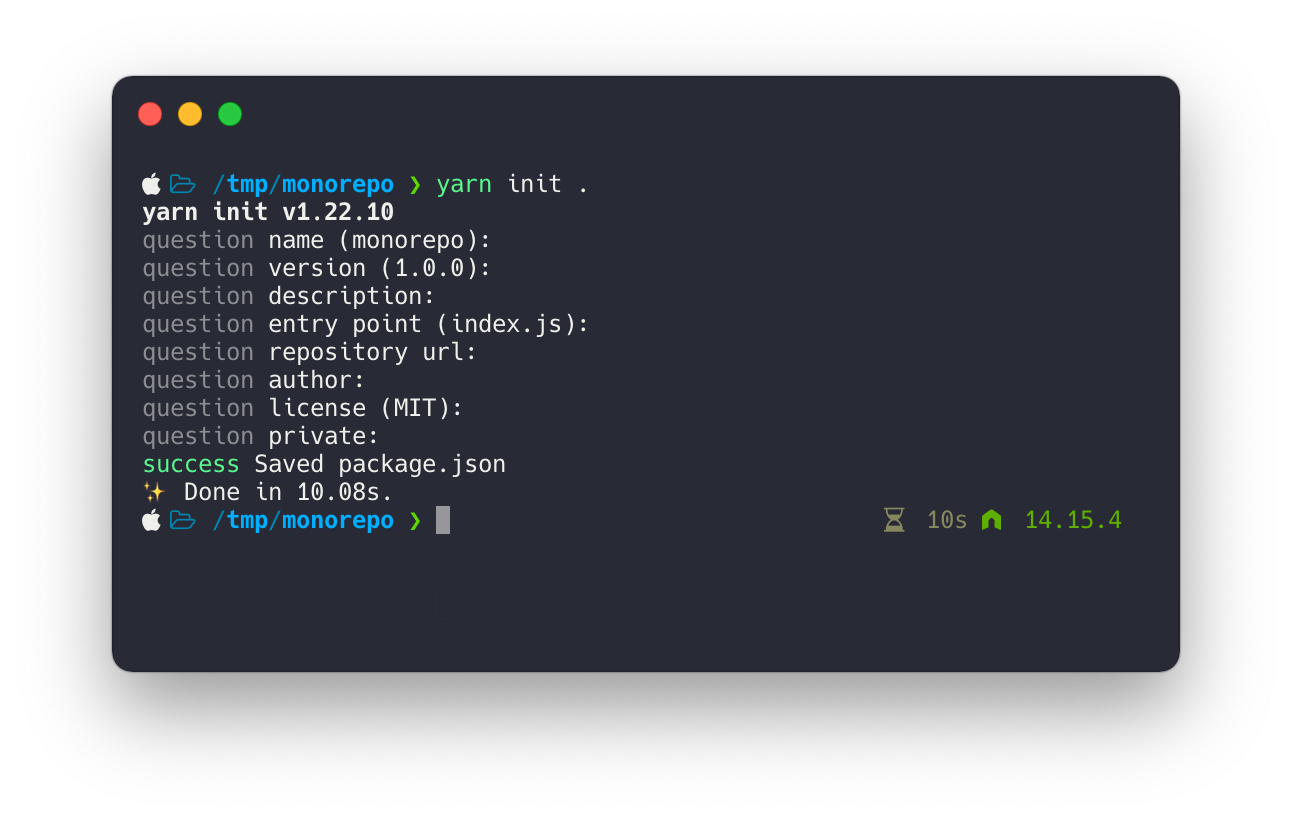
Now, this will be a monorepo, so let's prepare the directories for our packages. We will use yarn workspaces to organize our worktree, which is going to look like that:
.
├── package.json
└── packages
    ├── client
    └── server
Once we created the directories, let's modify our main package.json file a little bit to be compatible with yarn workspaces:
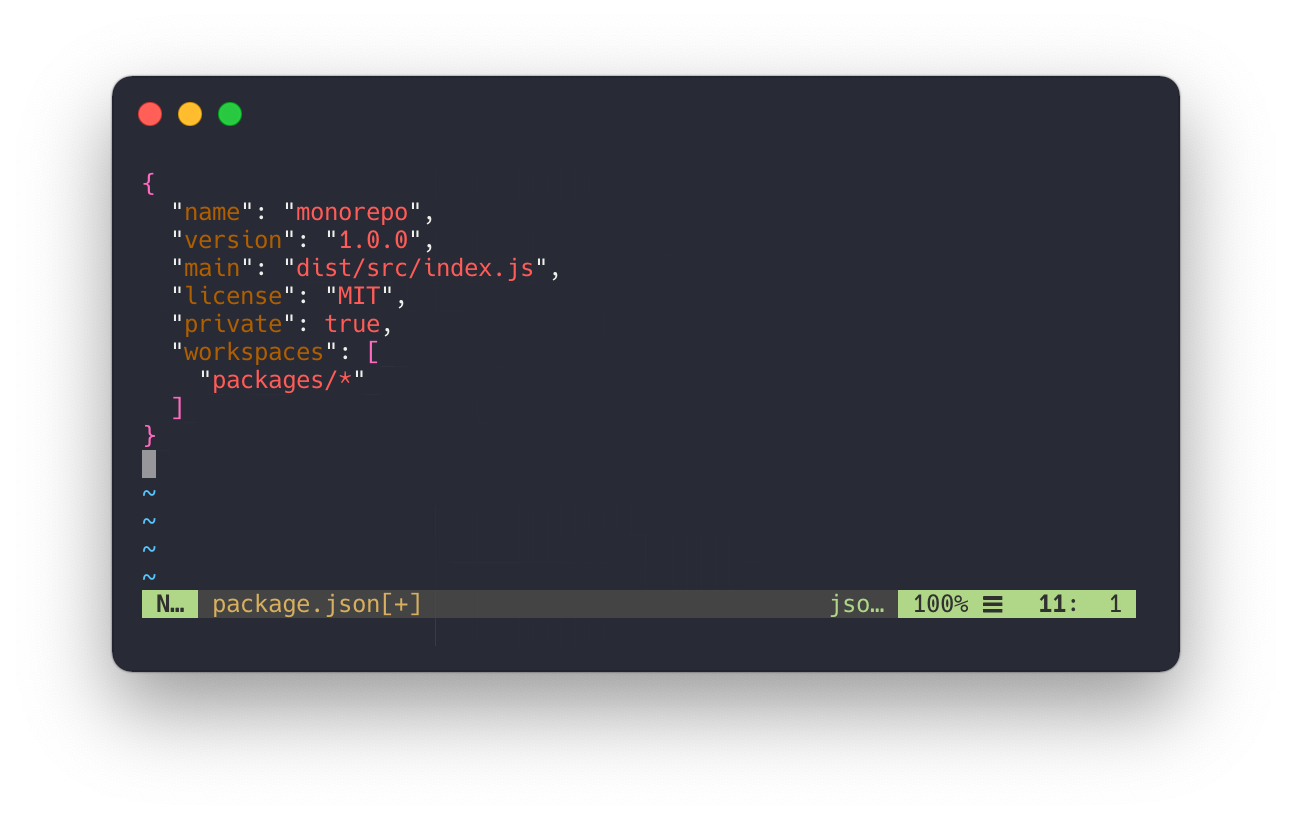
We did several modifications here:
privateis set totrue— the parent monorepo package is not supposed to be published by itself;workspaces— is set to a glob"packages/*", this is a setting which tells Yarn to look for our packages in those directories.
Once that is done, we can initialize our packages:
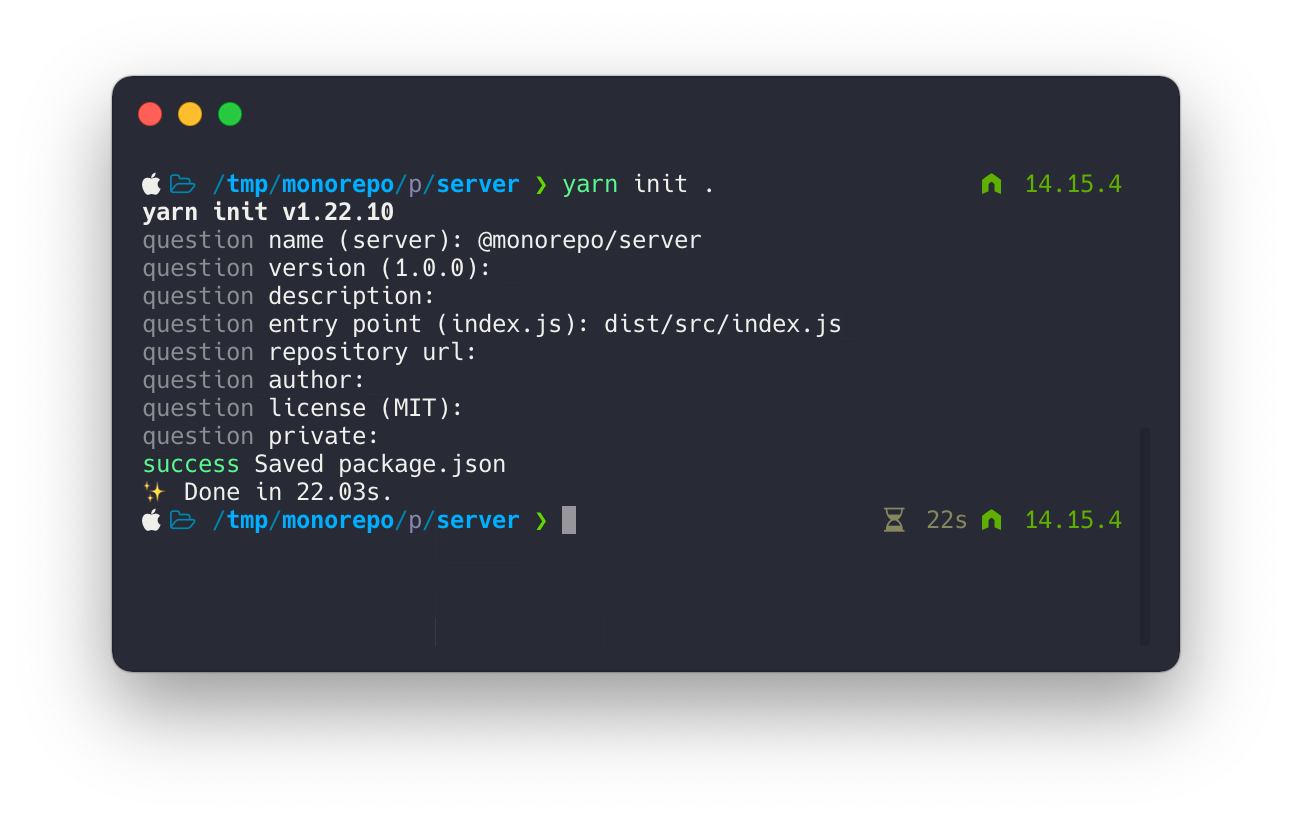
Two things that are worth mentioning are:
- The name of the package is
@monorepo/server. This is the way to define the scoped packages; we will also import those packages by using that name. - The entry point is set to
dist/src/index.js. - The package is not private.
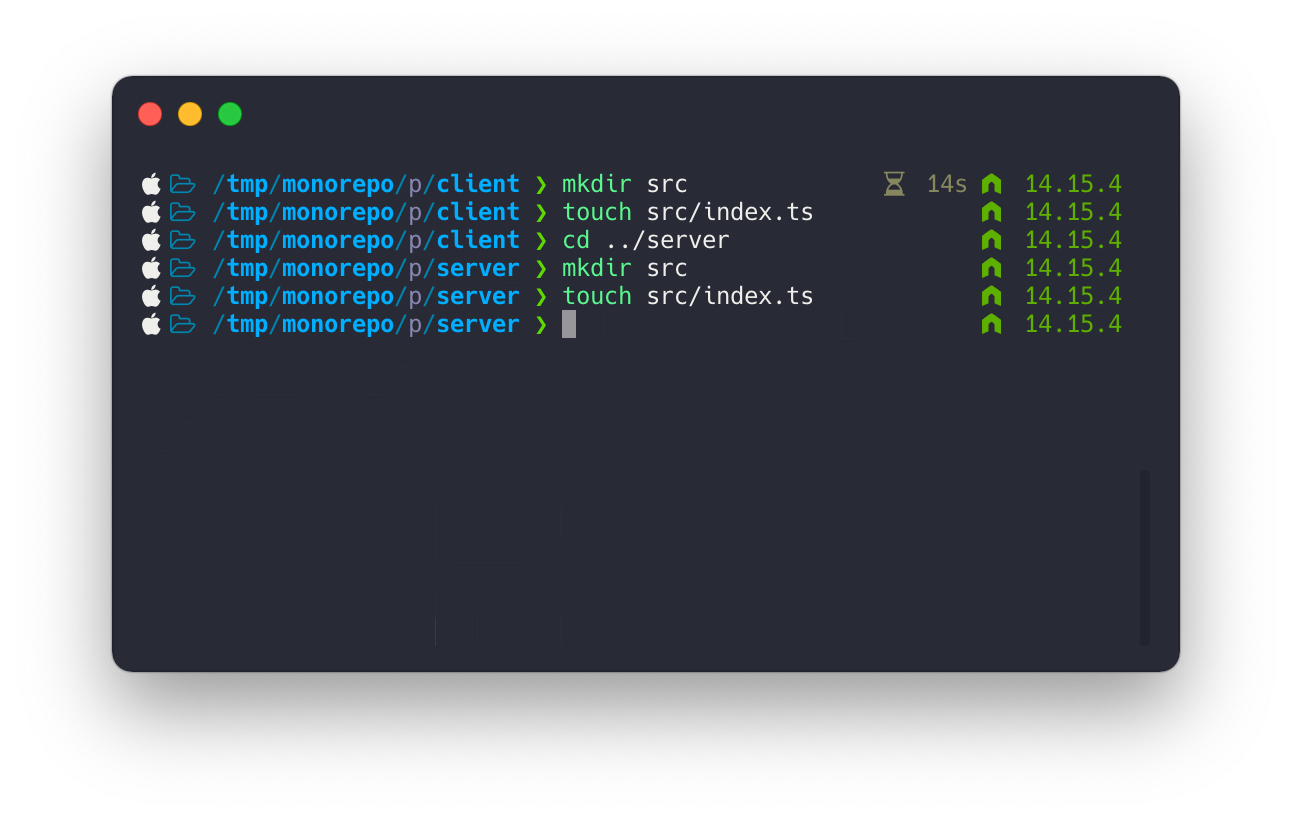
Once we do the same thing in the packages/client folder, we can add some code and packages. Add empty index.ts files to our packages/**/src directories.
Let's open WebStorm and write some simple code to show how we can use packages in the monorepo:
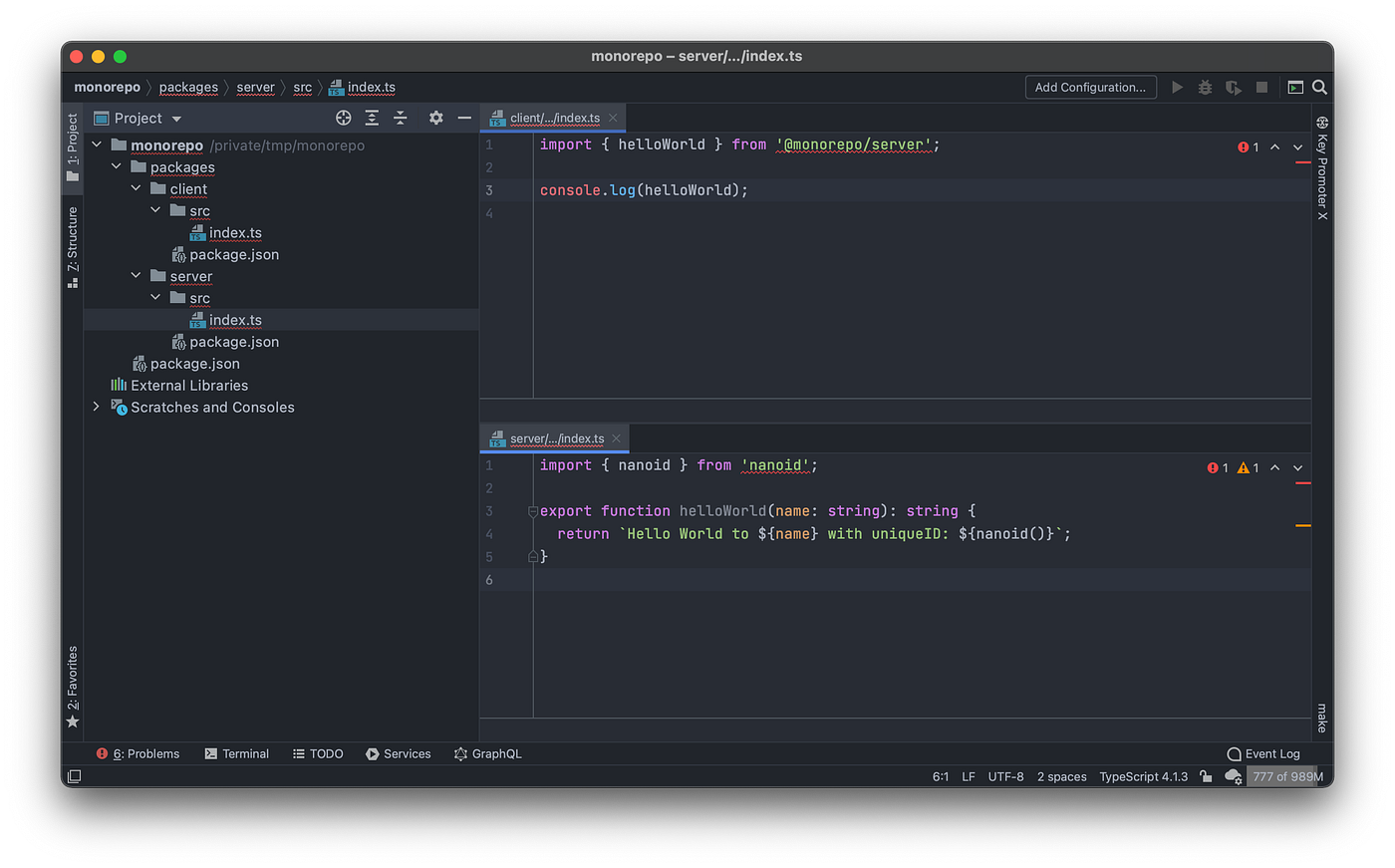
As you can see, we have at least several problems which we have to solve:
- WebStorm (and our project in general) have no idea what
@monorepo/serveris; - even if they knew where to find our server package, we could not compile our code as we haven't configured TypeScript yet;
- we have to install the dependencies.
We'll start with the basics and configure TypeScript in a monorepo setup first.
TypeScript configuration
To do that, we will create one main tsconfig.json file in the parent directory and additional tsconfig.json files in each package. Here is the content of the parent tsconfig.json file:
{
  "compilerOptions": {
    "incremental": true,
    "outDir": "./dist",
    "baseUrl": ".",
    "moduleResolution": "Node",
    "module": "CommonJS",
    "target": "ES2018",
    "sourceMap": true,
    "lib": ["esnext"],
    "esModuleInterop": true,
    "alwaysStrict": true,
    "strictNullChecks": true,
    "noImplicitAny": true,
    "noImplicitReturns": true,
    "noImplicitThis": true,
    "noUnusedLocals": true,
    "resolveJsonModule": true,
    "paths": {
      "@monorepo/*": ["packages/*/src/index.ts"]
    }
  },
  "references": [
    { "path": "packages/client" },
    { "path": "packages/server" }
  ],
  "exclude": ["node_modules", "dist", "*.d.ts"]
}
At least three options are necessary:
baseUrl— is important for the following options;paths— from the TypeScript handbook: "A series of entries which re-map imports to lookup locations relative to the baseUrl." Basically, it allows us to map a module path to some friendlier name like@monorepo/packagename;references— allows you to split your project into multiple components, where each of those components will use its own tsconfig file and will inherit most of the settings from the parent tsconfig file.
Let's now create a tsconfig.json file for our server package:
{
  "extends": "../../tsconfig.json",
  "compilerOptions": {
    "rootDir": ".",
    "outDir": "./dist",
    "baseUrl": ".",
    "sourceMap": true,
    "resolveJsonModule": true,
    "composite": true,
    "allowJs": false,
    "declaration": true,
    "declarationMap": true,
    "allowSyntheticDefaultImports": true
  },
  "include": ["src/**/*"],
  "exclude": ["node_modules", "dist"]
}
Two options are significant here:
extends— here we specify that this tsconfig file extends our main (parent)tsconfig.jsonfile;composite— referenced projects must have this option enabled. One major caveat is thatdeclarationmust be set totrueas well.
Our packages/client/tsconfig.json will look mostly similar but with some important differences:
{
  "extends": "../../tsconfig.json",
  "compilerOptions": {
    "rootDir": ".",
    "outDir": "./dist",
    "baseUrl": ".",
    "sourceMap": true,
    "resolveJsonModule": true,
    "composite": true,
    "allowJs": false,
    "declaration": true,
    "declarationMap": true,
    "allowSyntheticDefaultImports": true,
    "paths": {
      "@monorepo/server": ["../server/src/index.ts"]
    }
  },
  "references": [
    { "path": "../server" }
  ],
  "include": ["src/**/*"],
  "exclude": ["node_modules", "dist"]
}
We add two additional options:
paths— which is pointing to@monorepo/serverreferences— which references the server package.
You may ask why we have to specify these paths again if we already specified them in the parent tsconfig.json file and there's no clear answer to this, unfortunately. The good news is that we are not adding new packages multiple times per day, so it has to be done only once.
Prettier and ESLint configuration
Let's add configuration files for Prettier and ESLint and then try to make it all work in WebStorm:
yarn add prettier eslint-config-prettier eslint eslint-config-standard \
  eslint-plugin-import eslint-plugin-node eslint-plugin-promise \
  typescript @types/node @typescript-eslint/eslint-plugin \
  @typescript-eslint/parser -W
Notice the -W flag at the end — it tells Yarn to install the packages at the workspace root.
Let's initialize .eslintrc.json and .prettierrc.json files. Our ESLint config will look like that:
{
  "parser": "@typescript-eslint/parser",
  "parserOptions": {
    "project": "./tsconfig.json"
  },
  "extends": [
    "eslint:recommended",
    "standard",
    "prettier",
    "plugin:@typescript-eslint/recommended",
    "prettier/@typescript-eslint"
  ],
  "plugins": ["@typescript-eslint"],
  "env": {
    "es6": true,
    "node": true
  },
  "ignorePatterns": ["dist", "node_modules", "examples", "scripts"]
}
Feel free to modify it to your liking. There are just a couple of things to keep in mind:
- you have to include
parserOptions->projectoption to stay in-sync with TypeScript; - use the prettier plugin to avoid conflicts.
Our .prettierrc.json can be really basic:
{
  "trailingComma": "es5",
  "printWidth": 120,
  "singleQuote": true
}
Final steps
First of all, install the nanoid dependency in our server package:
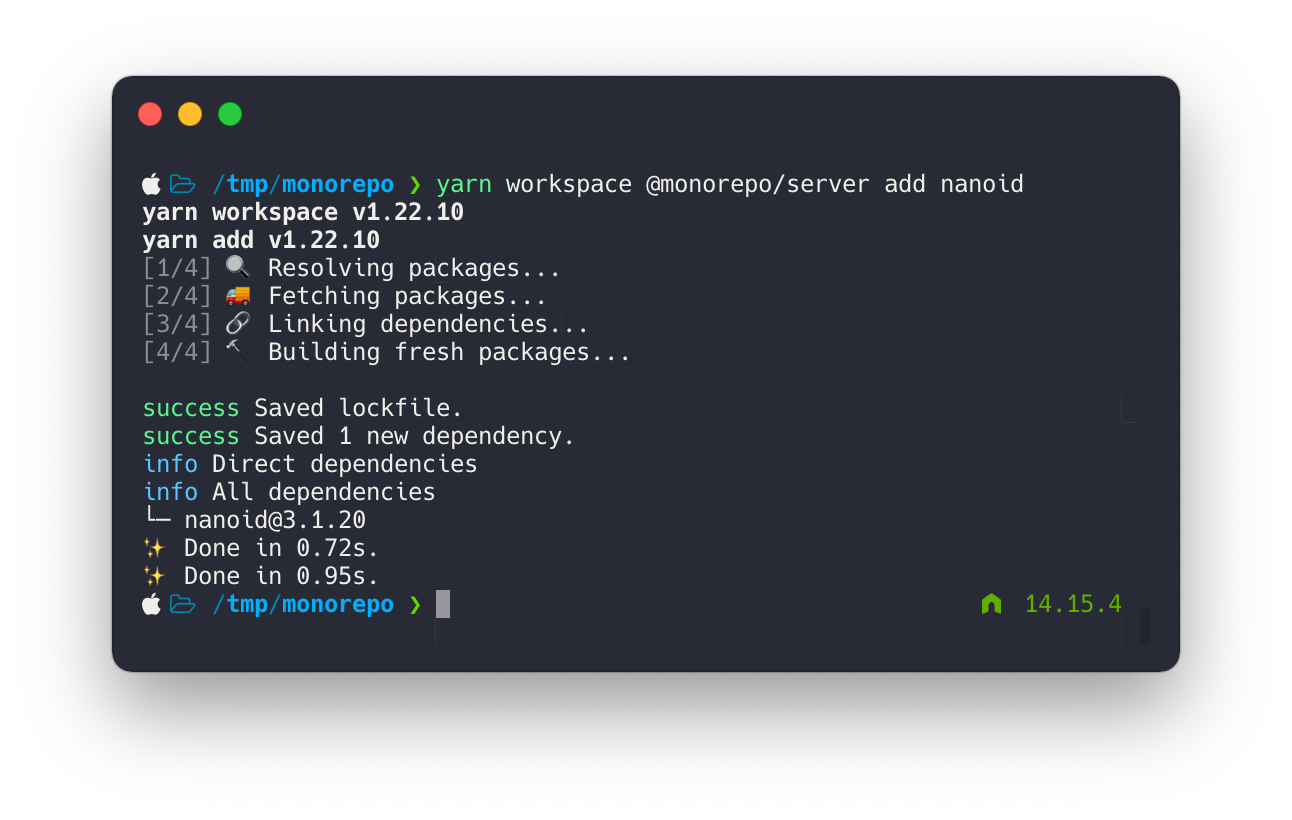
Notice how we add a workspace name (which equals to the name in package.json) to install the dependency only in that package.
Once that is done, let's add some useful scripts to our package.json files. Add the following section to your parent package.json file:
{
  "scripts": {
    "build": "tsc -b",
    "start": "yarn workspace @monorepo/client start"
  }
}
The second one is trivial — we are just launching the start script in our client package. However, the first one is much more important as it tells our TypeScript compiler to find all referenced projects (and their tsconfig files), check if they are outdated, and build them in the correct order.
The final touch, modifying our client's package.json:
{
  "scripts": {
    "start": "node dist/src/index"
  },
  "dependencies": {
    "@monorepo/server": "^1.0.0"
  }
}
Here we are adding a start script used in the parent package.json + adding the server as a dependency.
Voila!

But not exactly... We still have WebStorm to configure.
WebStorm configuration
Let's try to make it work in WebStorm. At the moment, if we type something nasty in our editor, we are not going to see any reaction from ESLint or Prettier:
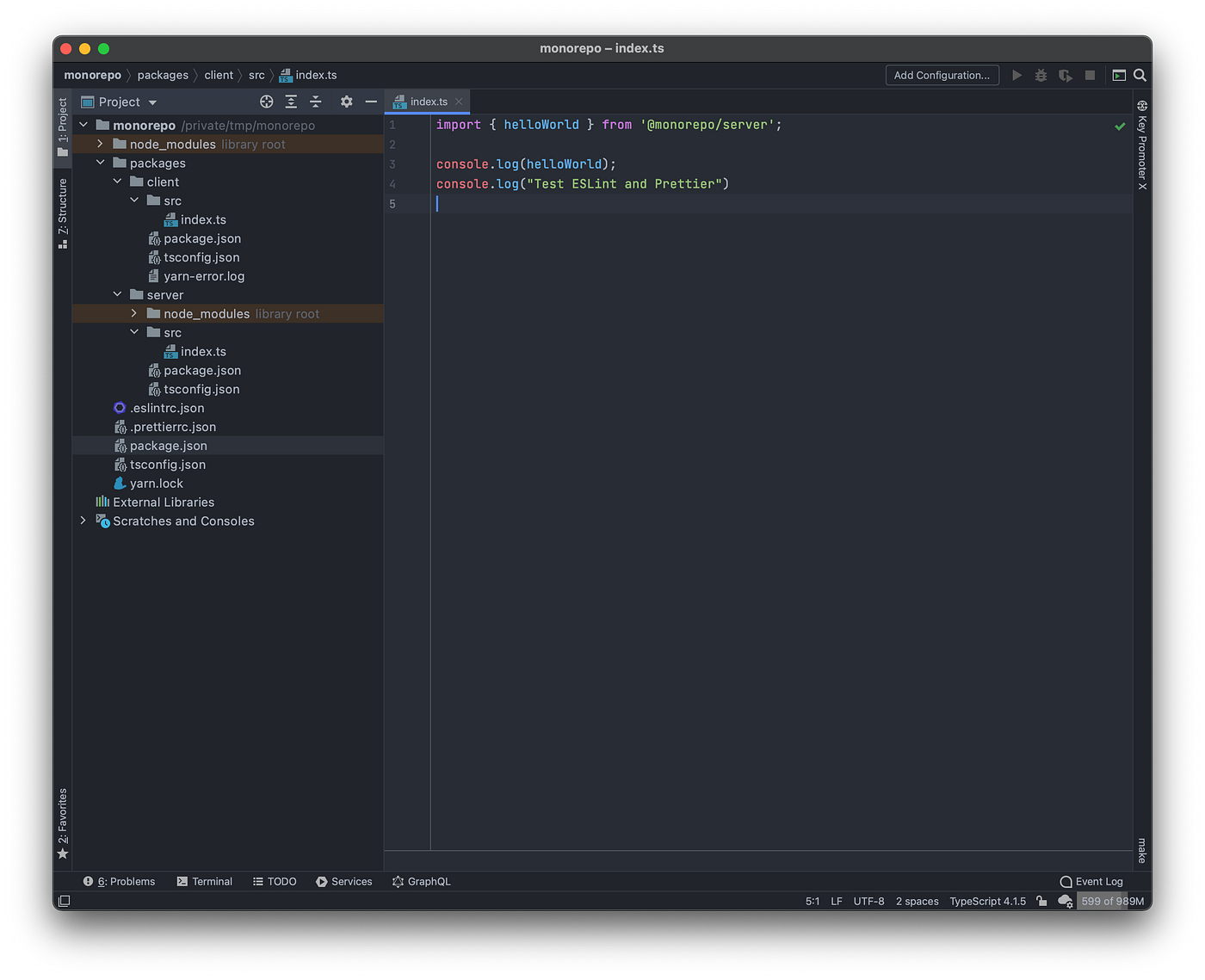
Open WebStorm preferences (Cmd + ,), search for the Prettier section and make sure that your Prettier package is selected and the "On save" checkbox is ticked.
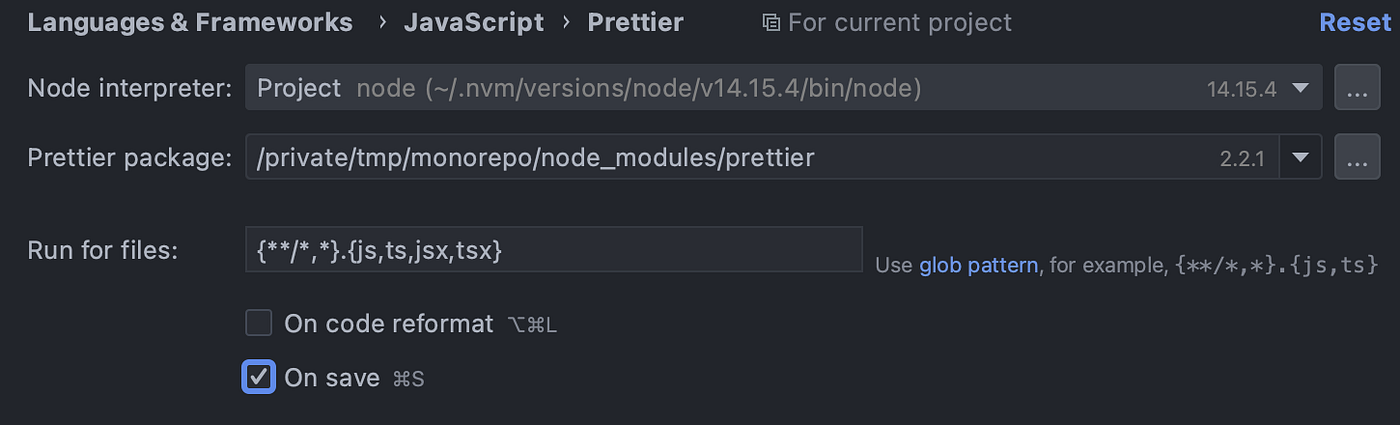
Once that is done, you should edit your file again, save it, and see that Prettier will automatically format it. Let's move on to ESLint. First of all, let's add the following rule to your ESLint config to test that the settings are working properly:
{
  "rules": {
    "@typescript-eslint/naming-convention": [
      "error",
      {
        "selector": "variable",
        "format": ["camelCase", "UPPER_CASE"]
      },
      {
        "selector": "function",
        "format": ["camelCase"]
      }
    ]
  }
}
Now we can write a test function to see if ESLint is functioning properly in WebStorm:
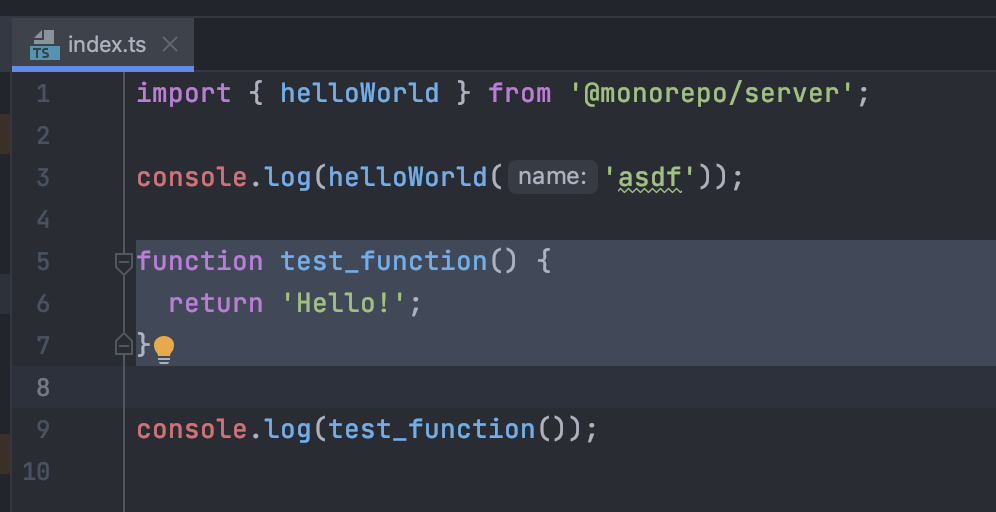
It doesn't. Let's open WebStorm settings again and go to ESLint preferences, and make sure that they are enabled:
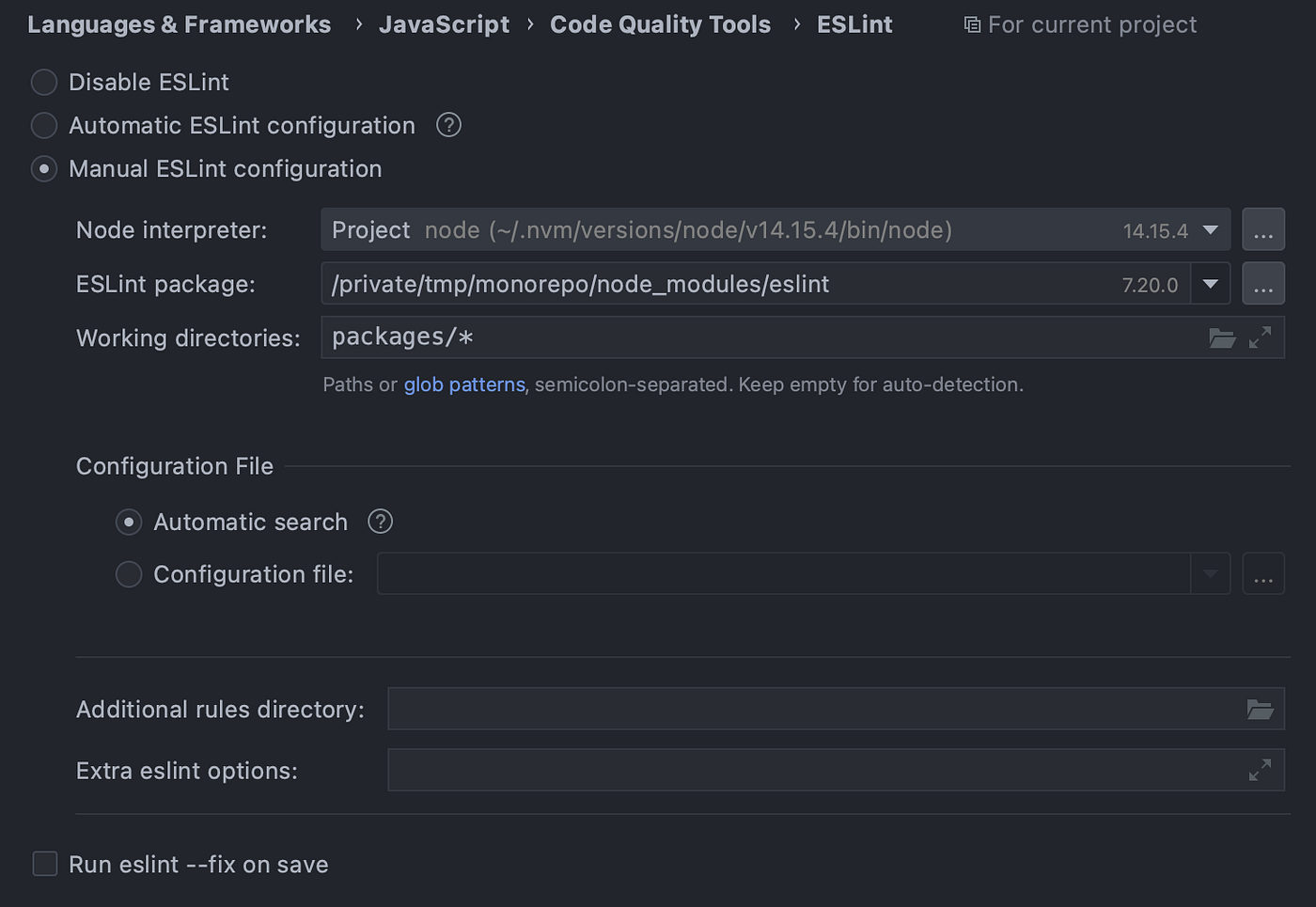
Make sure that your "ESLint package" setting is explicit and your "Working directories" are set to a glob "packages/*".
It might actually work without the modification of these two settings but I had some bizarre and hard to debug problems on big monorepo projects. These two settings seem to fix them.
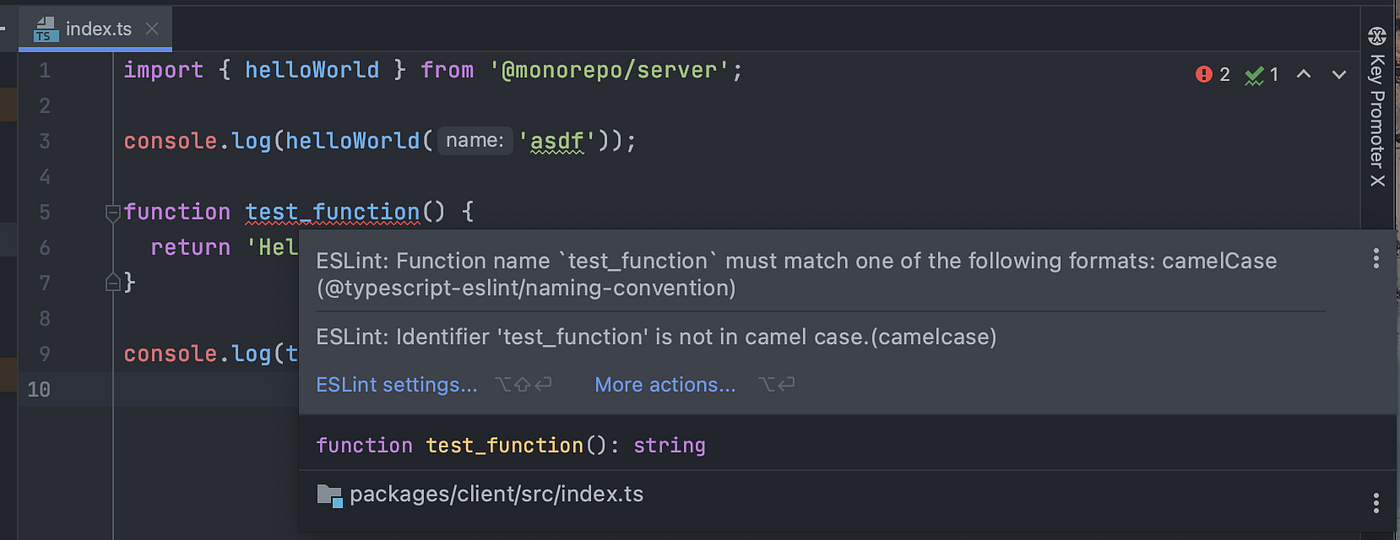
As soon as we do that we'll get our ESLint in the editor:
There is one more thing which we have to do — configure TypeScript itself and add our run/build configurations.
Click on the TypeScript widget in the footer of WebStorm:

In the TypeScript settings window, check for the following settings:
- Make sure that the path to TS is set correctly (you want to use the TS from
node_modules); - Set the additional options to
--build {path to your monorepo}/tsconfig.json. This is really important as it tells our TS compiler that it should always build our code using the build options.
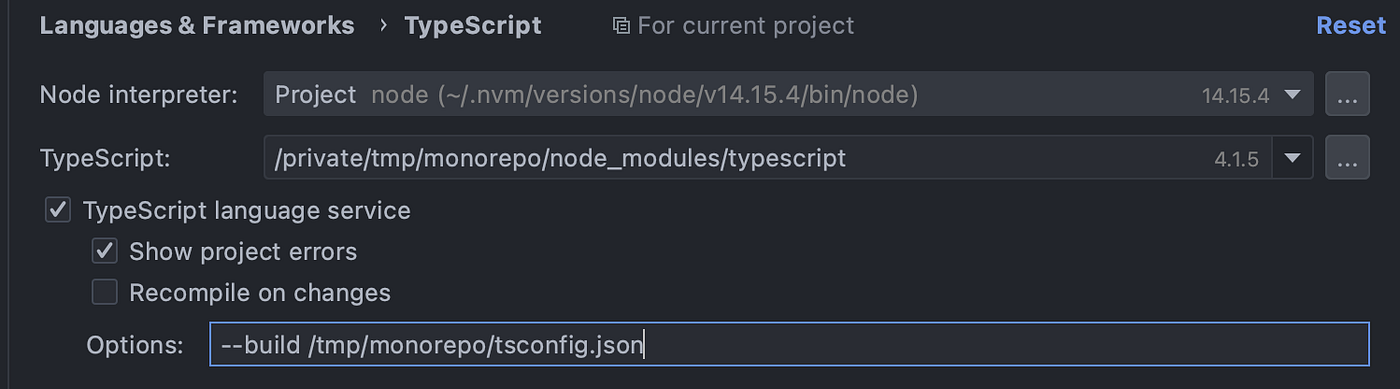
Last but not least, add the Run configuration. I recommend adding tsc -b before each run, which slows down the launch time a little bit, but it's the most reliable way to make sure that you're running the latest compiled version of the code.
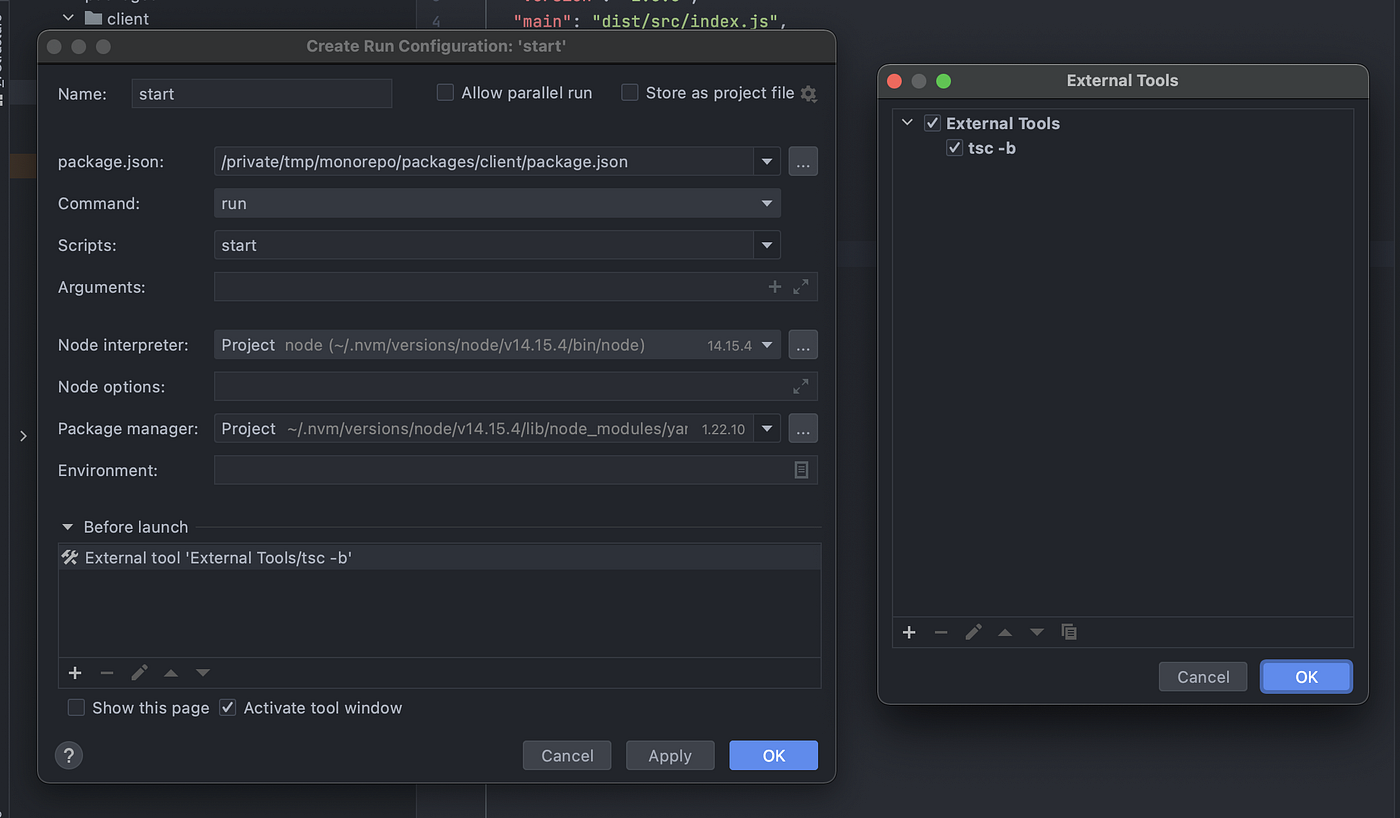
And that's it — we can now launch our project in WebStorm!
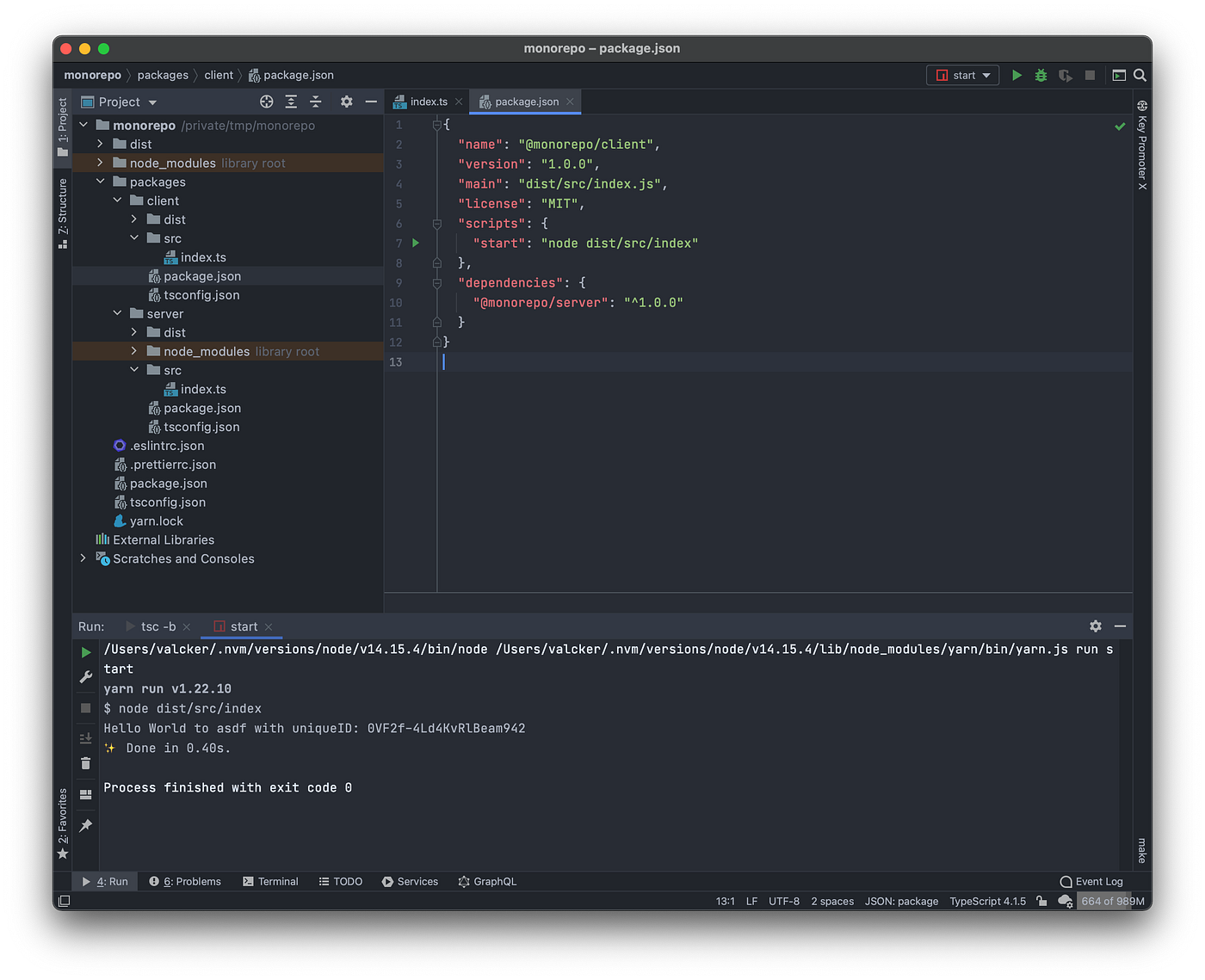
I hope this article will help you get started with monorepos and TypeScript and save some time in the process.